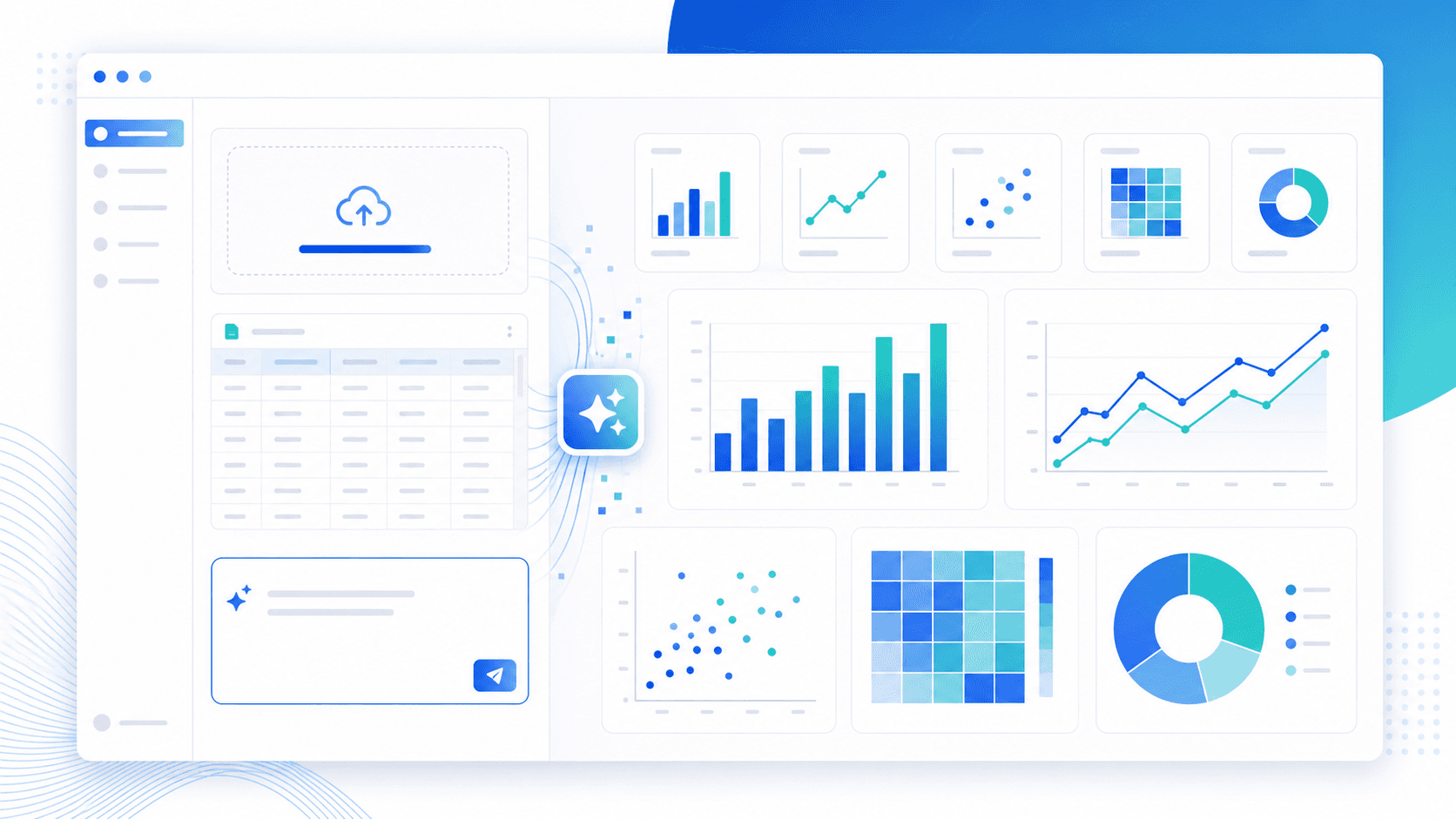
Best AI Data Visualization Tools Compared (2026 Guide)
Compare AI data visualization tools by category — free upload-and-chart tools, BI platforms, notebooks, assistants — with honest strengths and limits.
Ashesh Dhakal
Published May 19, 2026 · Updated August 10, 2026
"AI data visualization tools" is a crowded label. It covers everything from chart generators that read your spreadsheet, to BI platforms with an AI sidebar, to chatbots that draw approximate charts from pasted text. They are not interchangeable, and picking the wrong category wastes more time than any single tool's flaws.
This is the in-depth comparison: the criteria that actually separate tools, the five categories they fall into, when each one fits, and what each one is bad at. If you just want to try charting a file, the AI data visualization tool page gets you there directly — it is free in open beta, no dashboard setup required.
The Short Answer: Match the Tool to the Job
| Your situation | Best category of tool |
|---|---|
| A CSV or Excel file, need a chart now | File-upload AI chart generator (like AnalyzeData) |
| Data already in a spreadsheet, staying there | Spreadsheet AI charting features |
| Recurring dashboards for a whole team | BI platform with AI features |
| Custom or publication-grade visuals | Notebook + code with an AI assistant |
| A quick sketch from a few pasted numbers | General AI chatbot |
The rest of this guide explains how to verify that choice for your data.
Criteria: What AI Data Visualization Tools Should Actually Do
Before comparing categories, agree on what "good" means. A strong AI visualization workflow has these parts:
| Capability | Why it matters |
|---|---|
| File upload | Users should start from CSV, Excel, JSON, or TSV data. |
| Column understanding | The tool must know dates, categories, numbers, and labels. |
| Chart recommendation | Users often know the question, not the right chart type. |
| Computed, not guessed | The chart should come from code run on your actual rows, not an AI's estimate of them. |
| Natural-language refinement | "Make it a line chart" should be enough. |
| Export | Charts should be usable in reports and presentations. |
| Explanation | The tool should state what the chart shows and what it does not prove. |
If a tool only creates decorative charts from typed examples, it is not enough for real analysis. The chart has to come from the actual dataset.
The Five Categories of AI Visualization Tools
1. File-upload AI chart generators
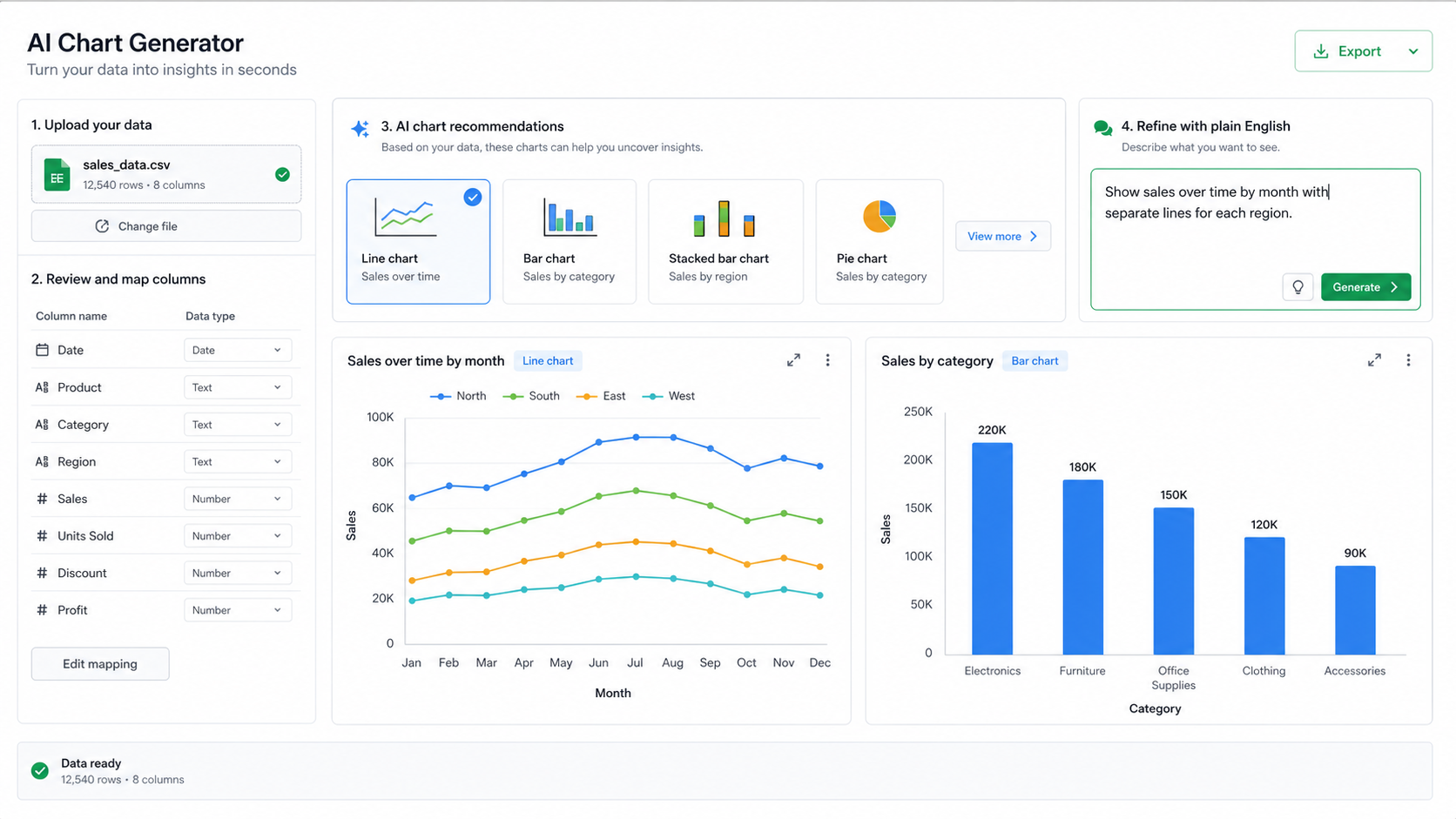
Upload a file, describe the chart in plain English, get the chart plus an explanation. This is what AnalyzeData does, so here is the honest version of both sides.
Strengths: fastest path from spreadsheet to chart; no setup or modeling layer; AnalyzeData specifically runs real Python on your data, so every number in the chart comes from executed code rather than a model's guess. It is free in open beta and works on CSV, Excel, JSON, and TSV files.
Limits: this category is not a BI stack. There are no governed semantic layers, scheduled dashboard refreshes, or live database connections. It is built for files, not for warehouse-scale pipelines.
2. Spreadsheet AI charting
Excel and Google Sheets both ship AI-assisted chart features now.
Strengths: your data never leaves the file you already work in; manual control over every chart element.
Limits: the AI layer mostly automates the same chart builder you already had. Chart recommendation and plain-English refinement are shallower, and getting a defensible statistical view (distributions, correlations) still means building it yourself.
3. BI platforms with AI features
Tableau, Power BI, Looker and similar platforms have added natural-language chart and Q&A features on top of governed data models.
Strengths: the right answer for recurring, shared, permission-controlled dashboards over large or live data sources.
Limits: cost and implementation effort. Standing up a BI platform to answer one question about one spreadsheet is the wrong size of tool.
4. Notebooks and code with AI assistants
Python or R plus an AI coding assistant writing matplotlib, Plotly, or ggplot for you.
Strengths: unlimited control; the only real option for publication-grade or fully custom visuals; everything is reproducible code.
Limits: you are still the analyst. You need an environment, you review the code, and iteration is slower than a purpose-built tool for routine charts.
5. General AI chatbots
Pasting data into a general assistant and asking for a chart.
Strengths: flexible reasoning, good for talking through what a chart should show.
Limits: unless the assistant actually executes code on your full dataset, the chart can be an approximation — plausible-looking values that no computation produced. For anything beyond a sketch, that is disqualifying.
Chart Types And When To Use Them
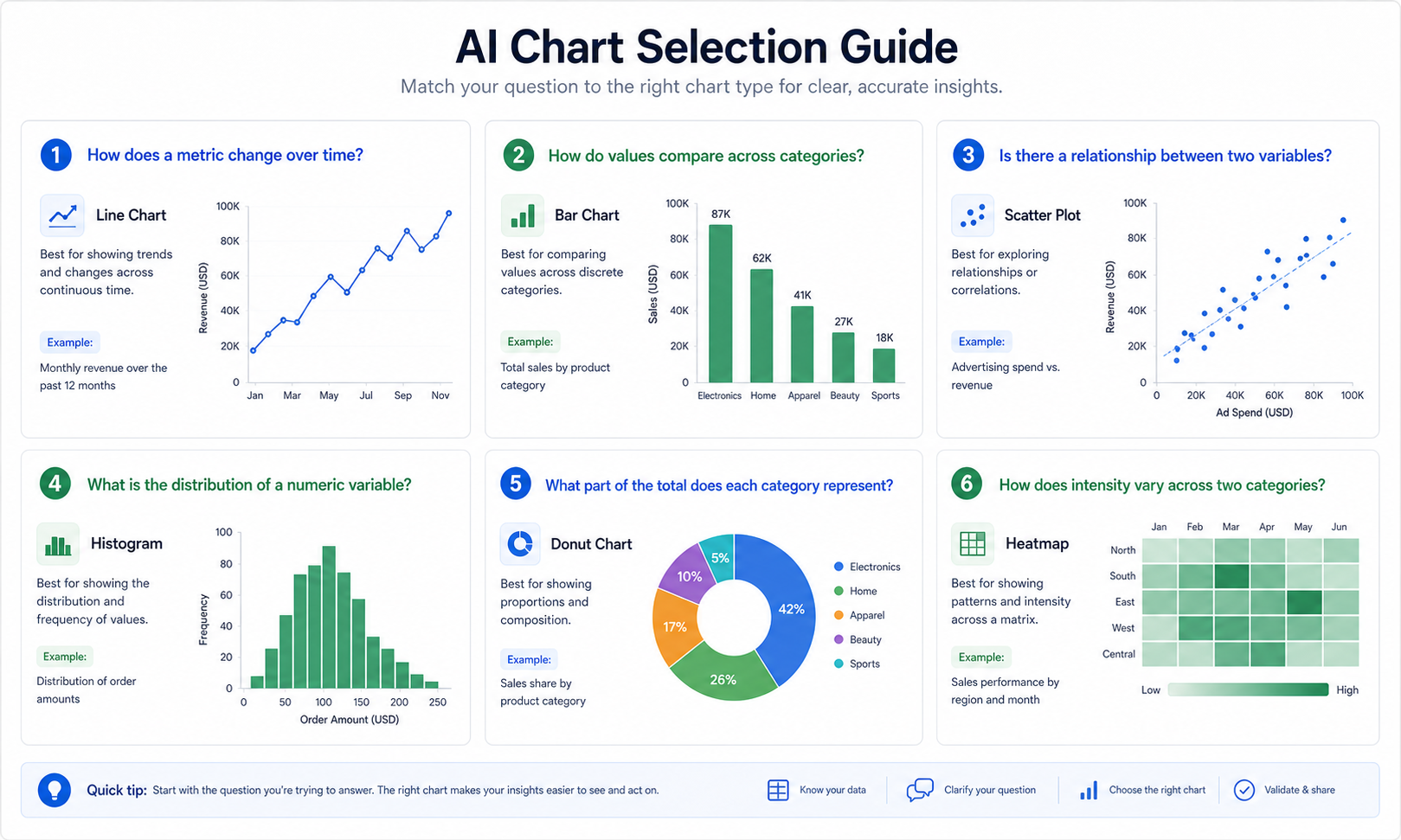
Whichever tool you pick, it should not choose charts randomly. The best chart depends on the structure of the data and the question.
| Question | Better chart |
|---|---|
| How does revenue change over time? | Line chart or area chart |
| Which category is largest? | Bar chart |
| How are two numeric variables related? | Scatter plot |
| Which combinations are strongest? | Heatmap |
| What share belongs to each segment? | Donut or pie chart, used carefully |
| How are values distributed? | Histogram or box plot |
For example, if your file has date, region, and revenue, a good prompt is:
Create a line chart showing revenue over time, split by region. Explain the trend and point out any unusual months.
If you are unsure, ask:
Recommend the best chart for this dataset and explain why.
How To Test Tools Head-to-Head
When comparing AI visualization tools, do not judge only the gallery screenshots. Upload the same small dataset to each tool and ask the same questions. A useful test file should include dates, categories, numeric metrics, missing values, and at least one outlier.
Use this evaluation checklist:
| Test | What good output looks like |
|---|---|
| Column detection | Dates, categories, and numeric fields are recognized correctly. |
| Chart recommendation | The suggested chart matches the question and data type. |
| Prompt refinement | Follow-up requests change the chart without restarting the workflow. |
| Explanation | The tool explains the chart in business language. |
| Validation | It surfaces assumptions, missing values, or outliers. |
| Export | Labels remain readable after download. |
The fastest tool is not always the best tool. A chart that takes five seconds but maps the wrong column creates more work than a slower chart that explains its assumptions.
An example test run
Imagine a spreadsheet with monthly sales by region:
| month | region | revenue | orders | average_order_value |
|---|---|---|---|---|
| 2026-01 | West | 48000 | 640 | 75 |
| 2026-01 | East | 42000 | 560 | 75 |
| 2026-02 | West | 52000 | 690 | 75 |
Start with a broad chart request:
Visualize this data in the most useful way. Show revenue trend over time, compare regions, and explain which chart best supports the conclusion.
Then refine:
- "Make it a line chart by month."
- "Add a bar chart comparing total revenue by region."
- "Show average order value separately."
- "Explain the chart in one paragraph for a report."
- "What chart would be misleading for this dataset?"
This is where AI for data visualization earns its place: it connects the chart to the analysis, not just the drawing.
What Makes A Chart Useful
A useful chart is not the prettiest chart. It is the chart that answers the question with the least confusion.
Look for these qualities:
| Quality | What it means |
|---|---|
| Correct mapping | The axes use the intended columns. |
| Appropriate chart type | Trends, categories, distributions, and relationships use different charts. |
| Clear scale | The scale does not exaggerate or hide the pattern. |
| Useful labels | Viewers can understand the chart without guessing. |
| Honest caveats | The chart does not imply causation or certainty it cannot support. |
| Accessible design | Color, contrast, and labels work for more users. |
For accessible visual communication, do not rely on color alone. The W3C Web Content Accessibility Guidelines are a useful reference when charts will be shared on a website or in a public report.
Prompts For Better AI Charts
The best chart prompts name the metric, grouping, chart purpose, and audience.
| Goal | Prompt |
|---|---|
| Trend | "Create a line chart showing revenue by month. Highlight the largest increase and decrease." |
| Category comparison | "Create a bar chart ranking product categories by total revenue." |
| Relationship | "Create a scatter plot comparing ad spend and revenue. Explain whether the relationship looks meaningful." |
| Distribution | "Show the distribution of order values and identify unusually large orders." |
| Executive summary | "Create a chart and write a 3-sentence takeaway for a weekly business review." |
| Chart choice | "Recommend the best chart type for this dataset and explain why another chart would be worse." |
If the chart matters, ask for the reasoning. "Why did you choose this chart?" is a good follow-up because it exposes whether the AI understood the data shape.
Common Chart Mistakes AI Should Catch
A strong AI data visualization generator should warn you when the requested chart is likely to mislead.
| Mistake | Better approach |
|---|---|
| Pie chart with too many categories | Use a sorted bar chart. |
| Line chart for unordered categories | Use a bar chart. |
| Average hiding outliers | Show a distribution or box plot. |
| Dual axes with unrelated metrics | Split into two charts or normalize carefully. |
| Truncated time range | State the date filter clearly. |
| Color-only categories | Add labels or patterns when the chart is shared broadly. |
If a tool never questions your chart request, treat that as a limitation. Natural language should make charting easier, not remove critical thinking.
What To Validate Before Exporting A Chart
Before using an AI-generated chart in a report, check the data mapping and the story the chart implies. A chart can look polished while still using the wrong date column, grouping by the wrong category, or hiding an important outlier.
Use this short review before exporting:
| Check | What to confirm |
|---|---|
| Axis mapping | The x-axis and y-axis use the intended columns. |
| Aggregation | Totals, averages, or counts match the question. |
| Time period | Dates are sorted and filtered correctly. |
| Outliers | Unusual values are visible or explained. |
| Caption | The written takeaway matches what the chart actually shows. |
| Export format | The output resolution and labels work where it will be used. |
If the chart will be used for an important decision, compare one or two numbers against the source spreadsheet before sharing it.
Privacy And File Handling
Visualization tools also need privacy review. A chart may reveal less than a raw table, but the tool still needs to read enough data to create it.
AnalyzeData parses files in the browser before preparing the visualization request. The workflow is designed to avoid an uploaded-file database while still giving the AI enough schema and bounded row context to recommend and generate charts.
For sensitive datasets, reduce columns before visualization:
| Keep | Usually remove |
|---|---|
| Date, category, metric, segment | Names, emails, addresses, IDs, free-text notes |
| Aggregated revenue or counts | Raw transaction notes |
| Region or plan | Full customer profile fields |
The chart rarely needs the most sensitive columns. In most cases, a chart needs only a date, a category, and a metric.
Visualization Is Half of Analysis
A chart is often the fastest way to check whether an AI summary is plausible. If the AI says revenue increased in Q2, a line chart should make that visible. If it says one category dominates, a bar chart should confirm it.
For tool selection across analysis and visualization, see the best AI tools for data analysis comparison. The best workflow is usually: upload the file, summarize the data with the AI data analysis tool, create a chart, validate the chart, then write the takeaway.
Limitations — Every Category Has Them
AI-generated charts can still be wrong. The tool may choose a chart that looks good but hides the real issue. It may map the wrong column, treat text as a category when it should be cleaned, or miss missing values. That applies to every category above, including ours.
For important decisions, check the chart against the source data. For executive reports, finance decisions, legal reporting, or scientific claims, validate the data and chart logic manually.
FAQ
Which AI data visualization tool should I use?
Match the category to the job: a free upload-and-chart tool like AnalyzeData for one-off files, spreadsheet AI if the data stays in Excel or Sheets, a BI platform for team dashboards, a notebook for custom visuals, and a chatbot only for rough sketches.
What AI tools can generate appropriate chart types automatically?
Tools that read your columns first. AnalyzeData inspects dates, categories, and numeric fields, then recommends a chart type for your question — and you can ask it to justify the choice. BI platforms with natural-language features do this too, once your data is modeled.
Is there a free AI data visualization tool?
Yes. AnalyzeData is free in open beta: upload a CSV, Excel, JSON, or TSV file and generate charts without building a dashboard first.
Can AI create charts from Excel data?
Yes. AnalyzeData can create charts from Excel files, CSV files, JSON files, and TSV files.
Is AI data visualization the same as BI?
No. AI visualization is useful for fast chart creation and exploration. BI platforms are better for governed dashboards, large data infrastructure, and repeatable enterprise reporting.
Ashesh Dhakal
Founder & Data Scientist
Ashesh Dhakal is a Data Science student at the University of Manitoba and a full-stack developer specializing in AI-powered applications. He holds a Computer Programming Diploma with Honors. His expertise spans explainable AI, natural language processing, and building production AI platforms.
Related Articles
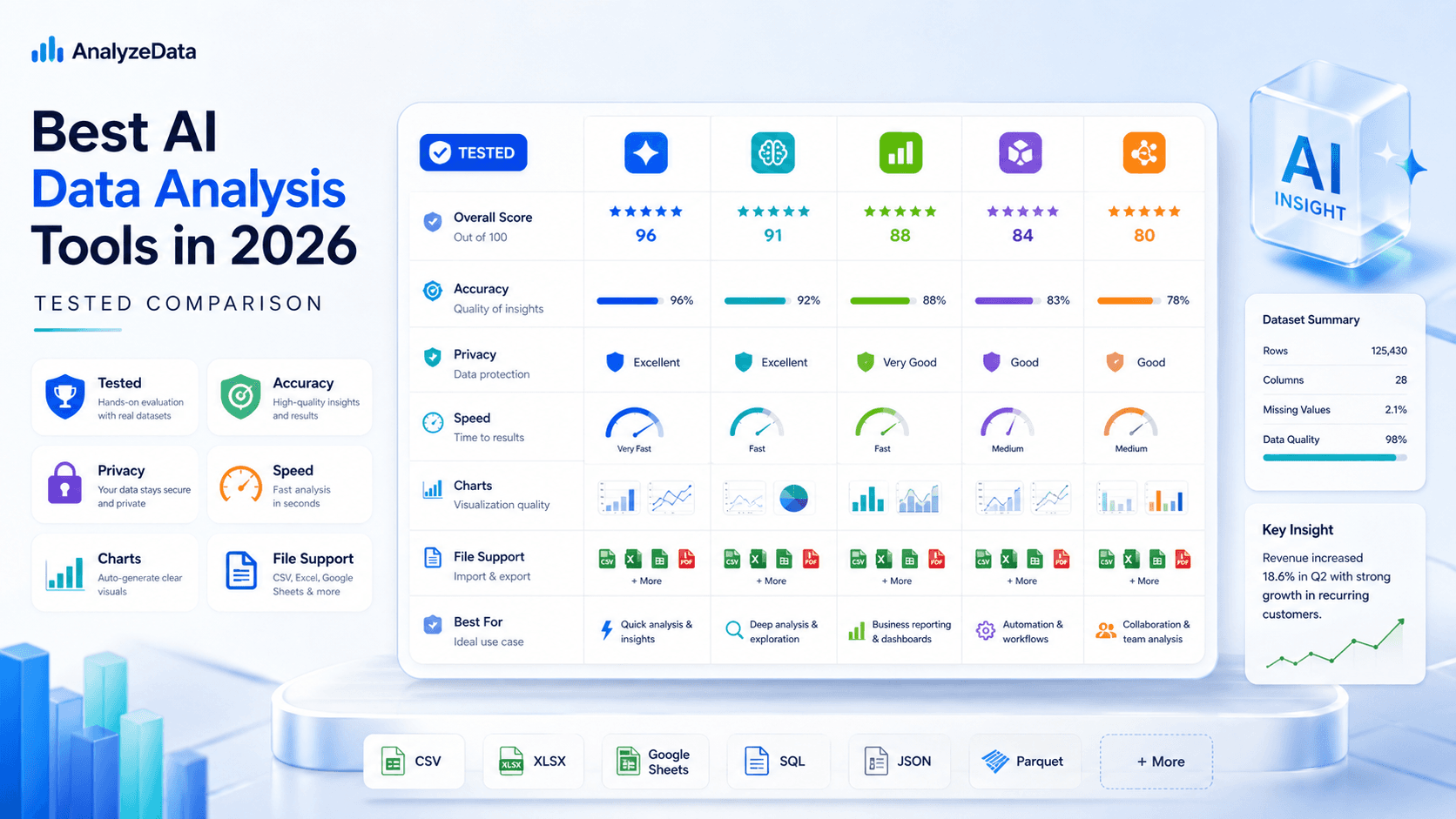
Best AI for Data Analysis (2026): Free Tools Compared
Which AI is best for data analysis? Compare 6 AI data analysis tools on accuracy, privacy, and price — including a free, no-signup analyzer for CSV and Excel.
How to Analyze CSV Data with AI (Free CSV Analyzer)
Analyze CSV data with AI free online — upload a CSV, ask in plain English, and get charts and statistics computed by real Python. No signup in open beta.
How to Analyze Excel Data with AI (Free, No Formulas)
Analyze Excel data with AI free: upload your .xlsx, ask in plain English, and verify every calculation without writing formulas. Real Python, no signup.